Variable pricing in WooCommerce lets you charge different prices for product variations like size, color, or custom options. This means you can set a lower price for a small shirt and a higher price for a large one, or add fees for gift wrapping, all within the same product listing. Setting up variable pricing correctly helps avoid customer confusion and smooths the checkout process. WooCommerce includes built-in tools for managing variable products, and with a bit of setup, you can offer clear, accurate prices for every option your customers pick.
What exactly does variable pricing mean in WooCommerce?
Variable pricing means assigning unique prices to different versions of a product based on attributes like size, color, or material. Instead of creating separate products, WooCommerce lets you group all these variations under one product. Each variation can have its own price, SKU, stock status, and image. This setup keeps your store organized and helps customers compare options easily without navigating away. It also gives you the flexibility to match your pricing and inventory for each variation precisely.
How do I create a basic variable product with different prices?
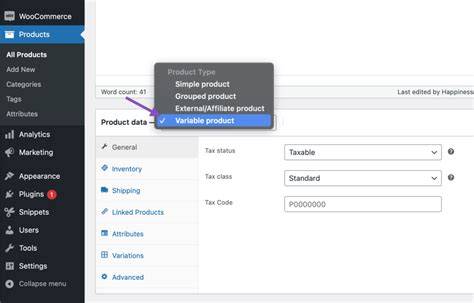
To create a variable product, start by adding a new product or editing an existing one. In the product data dropdown, select "Variable product." Then, go to the Attributes tab to add attributes like "Size" or "Color." Enter the attribute values separated by vertical bars (for example, Small | Medium | Large), and check the "Used for variations" box before saving. Next, in the Variations tab, choose "Create variations from all attributes" to generate every combination automatically. You can then edit each variation to set its price, SKU, stock quantity, and image. Save your changes and publish the product. Customers will see attribute selectors that update the price based on their choices.
Can I charge different prices based on custom attributes like engraving or gift wrapping?
WooCommerce’s built-in variable products work best with attributes like size or color, but adding custom options like engraving or gift wrapping as variations can quickly become overwhelming and clutter your product setup. Instead, use product add-ons or extra options plugins to charge additional fees for these custom services without creating countless variations. These plugins allow fixed or percentage-based price adjustments for add-ons, keeping your main product variations clean. This approach prevents customer confusion by limiting the number of choices they see while still reflecting the true cost of customization.
What are the best plugins to extend WooCommerce variable pricing?
If you want more control than WooCommerce offers by default, several plugins can help. WooCommerce Extra Product Options lets you add custom fields and conditional pricing, ideal for engraving or gift wrapping, though it’s a paid plugin and can be complex for beginners. WooCommerce Dynamic Pricing & Discounts enables tiered pricing and role-based discounts, focusing more on discounts than base prices. For quantity-based pricing, WooCommerce Tiered Pricing or Pricing Deals adjust prices based on the number of items purchased. Each plugin varies in cost, ease of use, and features, so pick one that fits your store’s needs and your comfort level with setup.
How do variable prices affect inventory management?
WooCommerce tracks inventory separately for each variation, so you can manage stock levels for, say, a red medium shirt independently from a blue large one. Variable pricing itself doesn’t complicate inventory, but you must set stock quantities for each variation if you want accurate tracking. Without enabling stock management per variation, WooCommerce treats the product as always in stock, which risks overselling. Managing many variations can become time-consuming without a system or plugin to help keep inventory updated. Proper stock management prevents customers from ordering options you don’t have available.
Are there common mistakes people make when setting variable pricing?
A common mistake is forgetting to set prices for each variation after generating them. WooCommerce does not assign prices automatically, so variations without prices might show as free or cause checkout errors. Another issue is confusing attributes with custom options and trying to use variations for every extra service, which overwhelms customers and clutters the product page. Some store owners also skip enabling stock management per variation, leading to inaccurate inventory. Finally, not clearly displaying price differences can confuse shoppers and cause them to abandon their carts. Double-check each variation’s price, stock, and settings before publishing to avoid these problems.
How can I display variable prices clearly to avoid customer confusion?
By default, WooCommerce shows a price range like "$10 - $20" for variable products, which can be unclear. To improve this, use themes or plugins that dynamically update the displayed price when customers select different options. Clear labels for each attribute and listing price differences—such as "Small - $10, Medium - $15, Large - $20"—in product descriptions or tooltips help customers understand costs upfront. Avoid hiding price changes until checkout. Adding images for each variation can also reinforce choices visually. Clear, upfront pricing builds trust and reduces hesitation during shopping.
Is it possible to offer discounts or dynamic pricing on variable products?
Yes, WooCommerce lets you set sale prices on individual variations, so you can discount a specific size or color without affecting others. You set these sale prices in the variation edit screen. Coupons also work with variable products, applying to the cart total or specific products regardless of variation. For more advanced dynamic pricing—like discounts based on quantity, user roles, or purchase history—you’ll need plugins such as WooCommerce Dynamic Pricing or discount extensions. These tools create rules that adjust prices automatically, which can increase sales but require careful setup to avoid confusion or conflicts.
What if I want to charge based on quantity or user role for variations?
WooCommerce doesn’t support pricing changes based on quantity or user roles within its core variable product setup. To add this, use plugins designed for advanced pricing rules. A tiered pricing plugin can reduce the price per unit when customers buy more, applying separately to each variation. User role pricing plugins let you set different prices for each variation depending on who’s logged in, such as wholesale versus retail customers. These options add flexibility to reward bulk buyers or specific user groups but increase complexity, so test thoroughly to ensure prices display correctly for all variations and users.
How do I test and troubleshoot my variable pricing setup before going live?
Before launching, check every variation on the product page to make sure prices update correctly as attributes change. Add different variations to your cart and confirm prices remain consistent through checkout. Test stock controls by trying to order more items than are available to verify inventory limits work. If prices don’t show or update properly, clear your site cache and review variation settings to ensure each has a price. Testing on multiple devices helps catch display problems. If you use plugins for advanced pricing, disable them one at a time to identify conflicts. Catching these issues before going live saves you from customer frustration and lost sales.
Conclusion
Start by creating simple variable products with clear attributes and accurate prices and stock for each variation. Avoid overwhelming customers by limiting variations and using add-ons or plugins for extra services like engraving. Make sure prices are displayed clearly so customers understand what they’re paying before checkout. If you need more complex pricing rules, choose plugins carefully and test everything thoroughly. The goal is a straightforward, trustworthy shopping experience that matches your inventory and pricing without confusing your customers or yourself.
Frequently Asked Questions
Can I set different prices for each color or size in WooCommerce?
Yes, WooCommerce lets you create variable products where each size or color variation has its own price. You do this by adding attributes and creating variations, then assigning prices individually to each variation.
Do I need a plugin to add custom options like gift wrapping?
While you can create variations for simple options, it’s usually better to use a product add-ons plugin for services like gift wrapping or engraving. These plugins let you charge extra without creating many variations, keeping your product page cleaner and easier to navigate.
Will variable pricing affect how I track inventory?
Inventory is managed separately for each variation in WooCommerce. This means you can set stock levels for each size or color individually. Just make sure to enable stock management per variation, or WooCommerce will treat the product as always in stock, which risks overselling.
Can I offer discounts only on certain variations?
Yes, WooCommerce lets you set sale prices on individual variations. You can discount a specific size or color without changing prices on others. For more advanced discount rules, plugins can add dynamic pricing features that apply to variations.
How do I make sure customers see the right price for their chosen variation?
Use themes or plugins that update the displayed price dynamically when customers select different options. Clear labels and showing price differences in product descriptions also help customers see costs upfront, reducing confusion at checkout.