Managing inventory in your WordPress ecommerce store means keeping a close eye on your stock levels so you never sell items you don’t have or miss out on sales because of empty shelves. To handle this well, start by enabling inventory tracking in your ecommerce plugin like WooCommerce. These tools let you set stock quantities for each product and variation, update stock automatically when orders come in, and notify you when items run low. With the right setup and a simple routine, managing your inventory will feel much less overwhelming and help your business run smoothly.
How do I start tracking inventory in my WordPress store?
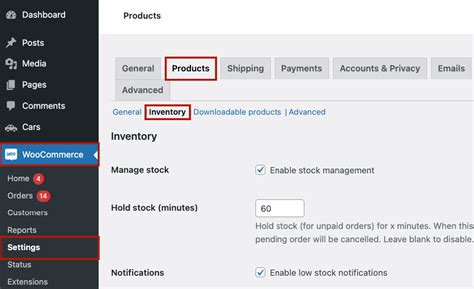
If you’re using WooCommerce, inventory tracking is built in and easy to enable. From your WordPress dashboard, go to WooCommerce > Settings > Products > Inventory. Check the box to enable stock management. This lets you set stock quantities per product, define low stock thresholds, and get notifications. After enabling, edit each product or product variation to enter how many units you have available. WooCommerce then automatically reduces stock when customers place orders and updates quantities as orders are refunded or canceled—if you enable those options. If you use a different WordPress ecommerce plugin, look for similar inventory or stock management features in its settings. WooCommerce covers most small businesses’ needs without extra cost or complexity.
What’s the difference between managing simple products and product variations?
Simple products have one SKU and one stock level, making inventory tracking straightforward: just enter the total stock and WooCommerce handles the rest. Product variations, like different sizes or colors of a t-shirt, each have their own SKU and stock count. For example, a medium blue t-shirt might have 10 units, while a small red has 5. You manage each variation’s stock separately under the Variations tab when editing the product. This detailed tracking stops you from overselling popular options and gives better insight into which variations sell best. Treating variations as one stock unit risks inaccurate inventory and unhappy customers.
How can I keep my inventory counts accurate automatically?
WooCommerce automatically updates stock levels as customers place orders, reducing the need for manual changes. If you refund or cancel orders, WooCommerce can add stock back if you enable those settings. To avoid mistakes, don’t adjust stock quantities outside WooCommerce unless necessary—and if you do, update WooCommerce right away. Using barcode scanners or inventory apps that integrate with WooCommerce can speed up stock counts and reduce errors. Syncing your physical inventory regularly with WooCommerce’s data keeps your counts accurate without extra hassle. Relying on WooCommerce’s automatic updates as much as possible will save you time and help prevent mistakes.
Can I get alerts when stock is running low?
Yes, WooCommerce lets you set low stock and out-of-stock thresholds with email notifications. In the Inventory settings, you decide how many units remaining will trigger a low stock alert—for example, 5 units. When stock reaches that number or less, you get an email reminding you to reorder. You can also set who receives these emails, like your supplier or warehouse manager. If you want more options, plugins can send notifications via SMS or Slack, helping you stay on top of stock even when you’re away from email.
How should I handle backorders or out-of-stock products?
WooCommerce lets you allow backorders, meaning customers can buy items even if they’re out of stock. This can keep sales going but risks delays if restocking takes time. You can allow backorders with or without telling customers. If you don’t want backorders, you can hide out-of-stock products or show them with an "Out of Stock" label clearly visible. Adding an estimated restock date in the product description helps keep customers informed and might encourage them to wait instead of buying elsewhere. Think about how fast you can fulfill orders and what your customers expect when deciding the best approach.
Is it possible to sync inventory across multiple sales channels?
If you sell on Amazon, eBay, or in a physical store, syncing inventory with your WordPress store helps prevent overselling. WooCommerce offers plugins and integrations that update stock levels across platforms so a sale in one place adjusts quantities everywhere. For example, plugins like WooCommerce Multichannel or tools like Zapier connect your WooCommerce store to marketplaces. Physical stores can use barcode scanners or POS systems that sync with WooCommerce in real time. Be aware that managing many SKUs or frequent stock changes can make syncing tricky, so test your setup carefully to avoid mismatches.
What common mistakes cause inventory headaches?
Common problems include forgetting to update stock after in-person sales or manual adjustments, leading to overselling or incorrect counts. Using inconsistent SKUs across sales channels causes syncing confusion. Ignoring low stock alerts means popular products might run out unexpectedly. Trying to manage complex inventory with only spreadsheets or without proper tools invites errors. Avoid these issues by keeping your stock updates centralized in WooCommerce, using consistent SKUs for all products and variations, and paying attention to notifications.
How do I reconcile inventory discrepancies and do stock audits?
Regular stock audits help you spot differences between your physical products and WooCommerce’s stock records. Set aside quiet times weekly or monthly to count your inventory, either manually or with a barcode scanner. Compare your counts to WooCommerce and update stock quantities as needed. If discrepancies happen often, check for causes like unrecorded sales or missed stock updates. Keeping a simple log of stock changes can help track why numbers differ. Making audits a routine part of your work keeps small problems from becoming bigger headaches.
Are there plugins or extensions that make inventory management easier?
Several plugins add useful features to WooCommerce’s inventory tools. "WooCommerce Stock Manager" gives a spreadsheet-like view to edit stock levels across many products quickly. "ATUM Inventory Management" offers detailed tracking, purchase orders, and supplier management inside WordPress. For marketplace syncing, "WP-Lister" connects WooCommerce to eBay or Amazon. To get SMS alerts for stock levels, "WooCommerce Advanced Notifications" can help. Choose plugins based on your store’s size, sales channels, and workflow. Many have free versions to try, so you can find what fits your needs without extra risk.
What’s the simplest daily routine to keep my inventory healthy?
Each day, check your low stock notifications and decide if you need to reorder. Review recent sales to make sure stock levels look right. When you receive new stock, update WooCommerce immediately. Avoid making manual stock changes during busy times to lower mistakes. At least once a week, count your best-selling items to catch any discrepancies early. Keep your product SKUs and descriptions consistent so you stay organized. This simple routine helps you stay ahead of inventory issues and keeps your store running smoothly.
Conclusion
Start by turning on stock management in WooCommerce and entering accurate quantities for each product and variation. Don’t worry about getting everything perfect right away—focus on updating stock when sales happen and setting alerts for low inventory. Regularly check your numbers and use helpful plugins if your inventory grows. You’ll know you’re on the right track when you stop worrying about accidental overselling or sudden stockouts. Managing inventory well comes down to steady habits and a solid setup, so start small and build from there.
Frequently Asked Questions
Can I track inventory for digital products in WooCommerce?
Digital products don’t usually need inventory tracking because they aren’t limited in quantity. WooCommerce lets you turn off stock management for digital items so you won’t get stock warnings for them.
How do I update stock after a returned order?
When refunding or processing a return in WooCommerce, you can choose to restock the returned items. This adds the quantity back to your inventory automatically, keeping your stock counts accurate without extra work.
Is it possible to manage inventory without WooCommerce?
Yes, other WordPress ecommerce plugins offer inventory features too. However, WooCommerce is the most popular and user-friendly option for small businesses. If you use a different plugin, check its documentation for how to manage stock.
How do I assign SKUs to products and variations?
SKUs are unique codes for each product or variation. In WooCommerce, you add SKUs on the product edit screen—simple products get one SKU, and each variation gets its own under the Variations tab. Using consistent SKUs helps with syncing and reporting.
What happens if I oversell an item?
With stock management turned on, WooCommerce usually stops customers from buying items that are out of stock. But if stock isn’t updated properly, overselling can happen, leading to unhappy customers and canceled orders. Regularly checking your stock helps prevent this.