Connecting your WordPress post feed with ROAS TOOL KIT can directly improve your Meta Ads performance by feeding fresh, relevant content into your advertising campaigns. This integration lets your Meta Ads automatically update based on your latest posts, making your targeting and reporting more accurate and timely. While setting this up might seem technical at first, following the right steps ensures your ads stay aligned with your current content, helping you get better returns on your ad spend.
What is a WordPress post feed and why does it matter for Meta Ads?
A WordPress post feed is a URL that outputs your site's latest posts in a standardized format, usually RSS or Atom. It acts like a live stream of your new content that tools like ROAS TOOL KIT can access automatically. For Meta Ads, this feed provides real-time data about your newest articles, blog entries, or updates. Instead of manually updating ads, your campaigns can dynamically reflect your freshest content. Ads connected to current, relevant posts generally perform better because they resonate more with audiences interested in your latest offerings. Feeding your WordPress post feed into ROAS TOOL KIT makes your advertising more responsive and data-driven by keeping your ads aligned with your up-to-date content.
How does ROAS TOOL KIT use your WordPress post feed for Meta Ads?
ROAS TOOL KIT uses the data from your WordPress post feed—such as post titles, categories, tags, and publication dates—to improve how your Meta Ads target and report on audiences. It analyzes which content types engage your audience most and helps adjust your ad targeting accordingly. For example, if posts about a certain product category get more attention, ROAS TOOL KIT can shift your ad budget toward audiences interested in that category. It also links conversions back to the specific content that influenced them, giving clearer insights into what’s driving results. In short, your WordPress content becomes a dynamic data source that helps fine-tune your Meta Ads campaigns for better return on ad spend.
How do I find or create the correct WordPress post feed URL?
Most WordPress sites have a default RSS feed located by adding "/feed" to your main URL. For example, yoursite.com/feed will list recent posts in a format ROAS TOOL KIT can read. If you want a feed filtered by category or tag, you can append parameters like example.com/category/news/feed to get posts only from "news." Some themes or plugins let you customize what appears in your feed or create additional feeds for different content types. Make sure your feed is publicly accessible without login requirements or security blocks; otherwise, ROAS TOOL KIT won’t be able to access it. Testing your feed URL in a browser or a feed reader before connecting it ensures it’s working correctly.
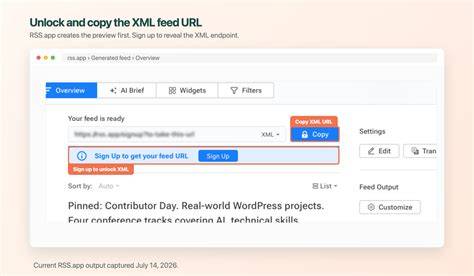
What are the exact steps to connect the WordPress post feed with ROAS TOOL KIT?
First, copy your WordPress post feed URL, typically yoursite.com/feed or a custom version if you prefer. Log into your ROAS TOOL KIT dashboard and find the section to add or manage feeds. Paste your feed URL into the provided field and save it. Next, connect ROAS TOOL KIT to your Meta Ads account by following the prompts, usually involving logging into Facebook Business Manager and granting permissions. Once connected, ROAS TOOL KIT will import your post data to enhance your Meta Ads setup. You may have options to map feed elements like post titles or categories to ad targeting parameters—review these carefully for the best results. Finally, check your ROAS TOOL KIT dashboard for confirmation of successful feed syncs and recent data imports. In summary: get your feed URL, add it to ROAS TOOL KIT, link your Meta Ads account, and verify data flow.
What common mistakes cause feed data to not sync correctly with ROAS TOOL KIT?
Common issues include using the wrong URL—such as a regular page link instead of the feed URL ending with "/feed"—or a custom feed that isn’t publicly accessible. Feed formatting problems often arise when plugins or themes alter the feed’s XML structure, breaking compatibility with ROAS TOOL KIT. Security or caching plugins might block feed access or require login, which stops data syncing. Also, failing to link your Meta Ads account properly within ROAS TOOL KIT can prevent data transfer. To avoid these problems, verify your feed URL loads in a browser without login, keep feed customizations compatible with standard formats, and double-check that your accounts have the right permissions. Testing the integration soon after setup helps catch issues early.
How can you verify that your WordPress post feed is working properly with ROAS TOOL KIT?
After connecting your feed, check the ROAS TOOL KIT dashboard for recent data imports, including timestamps or logs showing successful syncs. Look for updated post information, like new titles or categories appearing in your reports. In Meta Ads Manager, you might see new targeting options or content-based audience segments that weren’t there before. Publishing a new post on WordPress and then refreshing ROAS TOOL KIT after a short wait can confirm if new content appears correctly. If updates don’t show or errors appear, it’s a sign to troubleshoot the feed connection. Regularly checking these indicators keeps your integration running smoothly and your ads aligned with your latest content.
What adjustments can you make to your WordPress post feed to improve ad relevance and ROAS?
Improving your WordPress posts before they appear in your feed can boost ad targeting. Use clear, consistent titles and descriptions, since these often flow into ad content. Assign relevant tags and categories that match your audience segments—ROAS TOOL KIT uses this info to create precise targeting groups. For example, if you have multiple product lines, categorize posts accordingly so your ads can focus on the right buyers. Adding structured metadata like custom fields or schema markup can enrich feed data if supported by your tools. Avoid including unrelated or cluttered posts by filtering or excluding content that doesn’t align with your ads. Keeping your feed focused helps ROAS TOOL KIT understand your content better, improving ad relevance and increasing your ROAS.
How often should you update or refresh your WordPress post feed for best results?
Your WordPress feed updates automatically whenever you publish or change content. However, how often ROAS TOOL KIT pulls this data can affect your ads. Most businesses see good results with daily or multiple checks per day. Pulling data too frequently might strain your site or exceed tool limits, while checking too rarely lets ads run on outdated content. Aim to refresh feed data at least once a day to keep targeting current. If you publish several posts daily or run time-sensitive promotions, refreshing every few hours can help your campaigns stay sharp. The goal is to keep your ad data fresh enough to reflect your latest offers without overloading your system.
What should you do if your feed stops syncing or data looks wrong?
If syncing stops, first check your feed URL in a browser to see if it loads properly. If it doesn’t, review recent changes to your WordPress site, such as theme or plugin updates, which might block or alter the feed. Temporarily disable caching or security plugins to test if they cause issues. Verify your ROAS TOOL KIT settings and Meta Ads permissions to ensure accounts remain linked. If your feed shows incomplete or broken data, use an online feed validator to find XML errors. Clearing your site cache or regenerating feed files can fix some problems. Also, confirm your feed includes the correct categories or tags if posts are missing. If these steps don’t help, contact ROAS TOOL KIT support—they can often identify syncing issues on their end.
What are some advanced tips to get more from ROAS TOOL KIT using your WordPress post feed?
After setting up, you can enhance results by linking your post feed data with conversion tracking. Tag posts tied to high-converting products and track those conversions through ROAS TOOL KIT to identify your best-performing content. Segment posts by categories or tags within ROAS TOOL KIT to create targeted ad sets, tailoring creative and budgets for each audience. Tracking post performance over time helps you spot themes that consistently drive results and guides your content strategy. You can filter your feed to exclude older or less relevant posts, keeping ads focused. Some users add custom fields or metadata to WordPress posts to feed extra details into ROAS TOOL KIT, improving targeting precision. While these techniques require extra setup, they can significantly boost your ad efficiency and ROAS.
Conclusion
Start by confirming your WordPress post feed URL and adding it to ROAS TOOL KIT. Don’t worry about getting everything perfect immediately—connecting your feed and ensuring it syncs correctly is the most important step. Avoid unnecessary customizations that break your feed format, and focus on clear categories and tags to improve targeting over time. A good sign of success is seeing your latest posts appear in ROAS TOOL KIT and your Meta Ads adapting to fresh content with better tracking and relevance. Keep your feed updated regularly and address any syncing issues quickly to maintain smooth data flow. With these steps, your Meta Ads will benefit from up-to-date content insights, helping you make smarter decisions and improve your return on ad spend.
Frequently Asked Questions
Can I use any WordPress theme with ROAS TOOL KIT post feed integration?
Most WordPress themes support standard RSS feeds that ROAS TOOL KIT uses. However, some themes or plugins might change the feed output and cause issues. If you see feed errors, check whether your theme customizes feeds and consider switching temporarily to a default theme to troubleshoot.
What if my WordPress feed requires login or is behind a paywall?
ROAS TOOL KIT needs public access to your feed URL to pull data. If your feed requires login or is restricted, it won’t sync properly. You’ll need to make the feed publicly accessible or explore other ways to share your content data with ROAS TOOL KIT.
How do I handle multiple feeds for different types of content?
If ROAS TOOL KIT supports multiple feeds, you can add several URLs to segment content by category, tag, or post type. This lets you create more focused ad targeting based on different content streams. Just ensure each feed is properly formatted and publicly accessible.
Will updating my WordPress site affect the feed connection?
Updates to WordPress core, themes, or plugins can sometimes change feed behavior or permissions, which might disrupt syncing. After updates, test your feed URL and ROAS TOOL KIT connection to catch any problems early.
Can I customize the data ROAS TOOL KIT pulls from my WordPress feed?
You can influence what appears in your feed by editing post titles, excerpts, categories, and tags, which ROAS TOOL KIT uses for targeting. For more advanced customization, some plugins let you add custom fields or adjust feed structure. Be careful to keep standard formats intact to maintain compatibility.