If you're a small business owner ready to start selling products online but haven't used WordPress or set up an ecommerce store before, this guide is for you. WordPress combined with the WooCommerce plugin offers a straightforward way to create a functional online shop without needing technical expertise. By following clear steps—from choosing hosting and domain to setting up payments and shipping—you'll have your store ready to welcome customers and showcase your products.
Can WordPress really handle my online store needs?
WordPress is more than a blogging platform; it's a flexible system that can power many types of websites, including online stores. Its real strength for ecommerce comes from plugins, especially WooCommerce. WooCommerce transforms your WordPress site into a complete online shop, managing product listings, inventory, payments, and shipping. This plugin is popular with beginners because it’s free to start, easy to install, and offers many add-ons for extra features. While WordPress itself isn't designed solely for ecommerce, WooCommerce fills that role well, making WordPress a solid choice for small businesses just starting to sell online. The learning curve is gentle since WooCommerce guides you through essential steps without overwhelming options right away.
What kind of hosting and domain do I actually need?
Choosing hosting and a domain name is one of the first steps, but it doesn't have to be confusing. For an ecommerce store, pick hosting that ensures your site loads quickly and stays online reliably. Look for hosts that explicitly support WordPress and mention WooCommerce compatibility. Many providers offer WooCommerce-optimized plans that include features like easy plugin installation, security measures, and backups. You don’t need the most expensive plan initially; a basic shared hosting plan with good uptime and customer service reviews usually works well. For your domain, choose something simple, easy to spell, and related to your business name or products. Avoid complicated strings or unusual characters. Your domain is your store’s online address, so clarity helps customers find you without hassle.
How do I install and configure WooCommerce step-by-step?
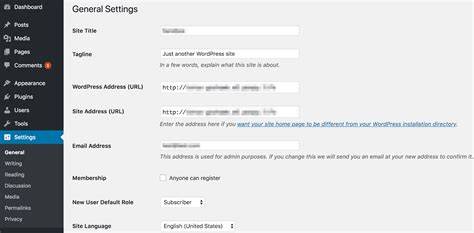
Installing WooCommerce on your WordPress site is straightforward. From your WordPress dashboard, go to Plugins, click Add New, search for WooCommerce, then Install and Activate it. After activation, a setup wizard appears to guide you through the basics: entering your store location, currency, and product types (physical, digital, or both). Next, add your payment options and shipping details. Focus on essentials first—skip advanced settings for now. For example, set your currency to match your local market and choose common payment methods like PayPal or Stripe. You can add more options later. The wizard automatically creates important pages like your store, cart, and checkout to save time. After the initial setup, visit the WooCommerce settings menu to adjust options like tax, email notifications, and inventory management—only change what you understand or need right now.
Which WordPress themes work best for ecommerce beginners?
Your store’s appearance matters, but you don’t need a custom design to look professional. Some WordPress themes are built specifically for ecommerce and work well with WooCommerce. For beginners, themes like Storefront (created by WooCommerce developers), Astra, or OceanWP are good choices. They are responsive, so they look good on phones and tablets, and offer simple customization without coding. When picking a theme, check that it’s regularly updated and has good reviews. After installing, customize it by uploading your logo, choosing brand colors, and organizing your homepage to highlight featured products or sales. Avoid cluttering the design with too many widgets or flashy animations that might distract visitors or slow your site down.
How do I add products like a pro without missing important details?
Adding products in WooCommerce happens in your WordPress dashboard under Products > Add New. Begin with clear, high-quality images showing your product from different angles. Write concise but informative descriptions that answer common customer questions, such as size, material, or usage. Use categories and tags to organize products, which helps visitors browse easily. For instance, if you sell clothing, categories could be "Men’s Shirts" or "Accessories." Managing stock is also important; WooCommerce lets you set how many items you have and shows if a product is out of stock. Don’t skip this—customers appreciate knowing product availability. Keep your product pages consistent in format to make your store feel organized and trustworthy.
How do I set up payment methods that my customers trust?
Making it easy and secure for customers to pay is essential. WooCommerce supports popular payment gateways like PayPal and Stripe, trusted worldwide. During setup, activate these options and enter your account details. PayPal lets customers pay using their PayPal balance or credit cards without sharing financial info with you directly. Stripe allows card payments on your site with strong security measures. Both handle the complex parts of payment processing, so you don’t have to manage PCI compliance yourself. After enabling payment methods, test them to ensure transactions work before launching. You can also add offline options like cash or checks if you plan to accept those, but most stores benefit from at least one online payment gateway.
What about shipping – how do I avoid confusing setups?
Shipping can seem tricky, but WooCommerce breaks it down into manageable steps. Start by defining shipping zones, which are geographic areas like countries or states where you ship. For each zone, set shipping methods such as flat rate, free shipping, or local pickup. For example, you might charge $5 for shipping within your state but $15 for other states. Keep it simple initially with one or two zones and rates; you can add more as your business grows. Clearly communicate shipping costs and delivery times on product pages or at checkout to avoid surprises. Avoid complicated rules or too many options at first, which helps prevent mistakes and customer confusion.
How do I keep my store secure and avoid common pitfalls?
Security protects your business and your customers’ trust. The first step is enabling SSL (the https:// prefix), which encrypts data between your site and visitors. Many hosts include free SSL certificates—check with your provider on how to activate it. Keep WordPress, WooCommerce, themes, and plugins updated regularly because updates often fix security issues. Back up your site frequently through your host or a plugin so you can restore it if needed. Use strong passwords and consider limiting login attempts to block brute force attacks. Avoid installing too many plugins, especially from unknown sources, since they can introduce vulnerabilities. Basic maintenance, like monitoring site speed and fixing broken links, also helps keep your store running smoothly.
What plugins or tools should I add to improve my store?
Once your store is up and running, a few carefully chosen plugins can help you grow without adding complexity. An SEO plugin like Yoast SEO helps your products show up in search engines, bringing in more visitors. For marketing, a simple email newsletter plugin like MailPoet lets you collect customer emails and send promotions. You might also add a live chat plugin to answer customer questions quickly, improving sales and satisfaction. Avoid installing too many plugins, especially those with overlapping features, as they can slow down your store or cause conflicts. Focus on tools that help your specific goals—whether attracting visitors, increasing sales, or providing support.
What are the next steps after launching my WordPress ecommerce site?
After launching, your focus shifts to keeping everything running well and attracting customers. Test the entire shopping experience yourself: browse products, add items to the cart, complete a test checkout, and check email confirmations. Fix any problems right away. Promote your store through social media, local advertising, or search engine optimization to bring in visitors. Keep adding new products or updating your content regularly to keep your store fresh. Watch sales and customer feedback to see what’s working and what might need improvement. Finally, set a routine for site maintenance—checking backups, updates, and security—to keep your store reliable and secure as you grow.
Conclusion
Start by choosing hosting and a domain that fit your budget and support WooCommerce easily. Install WooCommerce and follow its setup wizard, focusing on essentials like location, payments, and shipping. Pick a beginner-friendly theme and customize it enough to show your brand clearly. Add products carefully with good images and descriptions, then set up trusted payment gateways and simple shipping zones. Don’t skip security basics like SSL and keeping everything updated, and add only a few helpful plugins to enhance your store. Once live, test everything, promote your products steadily, and maintain your site regularly. With these steps, you'll have a store that works smoothly, welcomes customers confidently, and grows at a comfortable pace for you.
Frequently Asked Questions
Is WooCommerce the best plugin for WordPress ecommerce beginners?
WooCommerce is usually the best choice for beginners because it’s free, widely supported, and integrates tightly with WordPress. It covers all essential ecommerce features and offers extensions for more advanced needs as your store grows.
Can I use any WordPress hosting for my ecommerce store?
Many hosts support WordPress, but it’s best to pick those optimized for WooCommerce or ecommerce. These hosts handle higher traffic and security needs better, making your store more reliable and easier to manage.
Do I need to know coding to set up a WordPress ecommerce site?
No coding skills are needed to set up a basic store with WordPress and WooCommerce. The setup wizard and user-friendly themes let you get started without touching code.
How do I keep my customers’ payment information secure?
Using trusted payment gateways like PayPal and Stripe means you don’t handle sensitive payment data directly. These services manage security and compliance, keeping your customers’ information safe during transactions.
What’s the most common mistake beginners make when setting up WooCommerce?
A common mistake is trying to configure too many options at once or skipping the setup wizard, which can cause confusion. It’s better to start simple and add features gradually as you learn what your store needs.