If your WordPress post feed isn’t appearing in ROAS TOOL KIT, the issue usually comes down to a few common problems: incorrect feed URLs, insufficient permissions, or conflicts with other plugins or themes. Troubleshooting these areas often gets your post data flowing again quickly. Start by ensuring your feed URL is correct and accessible, that WordPress settings and permissions allow ROAS TOOL KIT to read your feed, and that no other tools are blocking or modifying it. From there, interpreting ROAS TOOL KIT’s error messages and checking synchronization settings will help keep your tracking accurate and reliable.
Why is my WordPress post feed not showing up in ROAS TOOL KIT?
Your WordPress post feed may not appear in ROAS TOOL KIT for several straightforward reasons. Begin by confirming the feed URL is exactly right—missing characters or typos can break the connection. Ensure your website is online and reachable; if it’s down, the feed can’t load. Some plugins or themes might disable or alter your feed without you realizing it. Also, check for privacy settings or user role restrictions that might block access. Finally, confirm that ROAS TOOL KIT has proper authorization to fetch your feed. Addressing these factors usually resolves most feed visibility issues.
How do I confirm my post feed URL is correct and accessible?
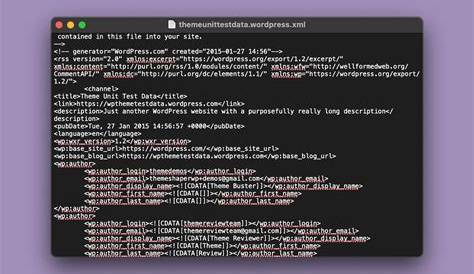
To verify your feed URL, add "/feed" or "?feed=rss2" to your homepage URL (for example, yoursite.com/feed). Opening this URL in a browser should display an XML stream if your feed is accessible. If you see an error or a blank page, something’s wrong. Use an online feed validator to check the feed’s format and accessibility—errors here often indicate malformed or blocked feeds. Keep in mind that caching plugins or security settings can interfere, so try accessing the feed from different devices or networks to narrow down the cause.
What permissions or settings in WordPress affect my feed’s visibility?
WordPress privacy settings and user roles can limit feed access. If your site is private or restricted to members, ROAS TOOL KIT won’t reach your feed unless it has the right credentials. Security plugins sometimes block automated requests, mistaking them for attacks. Check your WordPress ‘Reading’ settings to make sure your site is public. Review any access control or security plugins to confirm that ROAS TOOL KIT’s user agent or IP addresses aren’t blocked. If your feed requires login, ensure that ROAS TOOL KIT has proper permissions. Without these, the feed will remain inaccessible.
How can I recognize and understand ROAS TOOL KIT error messages related to feeds?
ROAS TOOL KIT provides error messages that usually point to the root of feed problems. For example, “Feed not found” means the URL is wrong or the feed can’t be reached. “Unauthorized access” signals permission or blocking issues. “Invalid feed format” indicates the feed’s XML is malformed or not a standard RSS or Atom feed. A timeout error suggests your server may be slow or temporarily unreachable. Knowing what these messages mean helps you focus on the right fixes instead of guessing.
Could my WordPress theme or plugins be causing feed issues?
Sometimes themes and plugins interfere with your feed. SEO plugins might rewrite feed URLs or change content, causing ROAS TOOL KIT to reject the feed. Security plugins can block ROAS TOOL KIT’s requests if they consider them suspicious. Caching plugins might serve outdated or empty feeds. To test, switch to a default WordPress theme like Twenty Twenty-Three and deactivate all plugins except ROAS TOOL KIT. If this restores the feed, reactivate plugins one by one to find the problem. This method helps identify conflicts clearly so you can update or replace the troublesome plugin or theme.
How do I fix synchronization problems between WordPress and ROAS TOOL KIT?
If your data isn’t syncing, start by clearing caches in WordPress and any caching services you use. Cached feeds can show old content and block updates. Check that authentication tokens or API keys connecting WordPress and ROAS TOOL KIT are current; tokens sometimes expire and need refreshing. Verify the feed URL is correct in ROAS TOOL KIT’s settings. If you use third-party integrations or webhooks, make sure they’re functioning properly. These steps usually resolve most syncing issues and keep your post tracking accurate.
What troubleshooting steps can I take when my feed updates aren’t reflecting in ROAS TOOL KIT?
When new posts or updates don’t appear in ROAS TOOL KIT, it might be due to delayed feed refreshes or failed fetches. Try manually refreshing the feed in ROAS TOOL KIT if that option is available. Check your WordPress scheduled tasks (cron jobs), which often handle feed updates—some hosting setups disable or limit cron, causing stale feeds. Also, clear caches that might serve outdated feed versions. If the problem continues, review server logs or ROAS TOOL KIT logs for errors during feed fetch attempts to identify less obvious issues.
Are there specific feed formats or standards ROAS TOOL KIT requires?
ROAS TOOL KIT expects standard RSS 2.0 or Atom feeds, which WordPress provides by default. If you or your plugins customize feed output heavily, you risk breaking compatibility. To avoid problems, use the default feed URLs and limit customizations. If you must customize, validate your feed with an online tool to catch format errors. ROAS TOOL KIT does not support JSON or custom XML feeds unless explicitly stated, so sticking with WordPress’s built-in feed formats is safest.
When should I reach out to ROAS TOOL KIT support or a developer?
If you’ve checked URLs, permissions, plugin conflicts, and feed formats but still have problems, it’s time to ask for help. Contact ROAS TOOL KIT support when error messages are unclear or indicate server-side issues you can’t fix. Hire a developer if you need custom feed coding or face complex plugin or theme conflicts. Before reaching out, collect your feed URL, error messages, WordPress version, active plugins list, and recent changes—this information helps resolve issues faster and avoids back-and-forth delays.
How can I prevent common WordPress post feed issues with ROAS TOOL KIT in the future?
Prevent feed problems by keeping WordPress, themes, and plugins updated to avoid compatibility issues. Regularly check your feed’s accessibility using a validator or by viewing it in a browser. Avoid unnecessary feed customizations, and if you customize, test thoroughly afterward. Configure caching and security plugins to allow ROAS TOOL KIT access. Consider setting up alerts to notify you if your feed becomes unavailable. Document your feed setup and connection details to make troubleshooting easier later. These habits help maintain smooth and reliable post feed tracking over time.
Conclusion
Start by double-checking your feed URL and confirming it loads in a browser—this simple step fixes many problems. Don’t overlook WordPress settings or plugin conflicts that might block ROAS TOOL KIT from accessing your feed. Pay attention to error messages, as they often point directly to the issue. Keep your data syncing by refreshing tokens and clearing caches regularly. If updates don’t appear, verify cron jobs and caching settings again. Reach out for support only after ruling out common causes, and provide detailed information to speed up assistance. Once your feed works reliably, ROAS TOOL KIT can effectively track your post performance and reduce frustration.
Frequently Asked Questions
Why does ROAS TOOL KIT say my feed URL is invalid?
This usually means there’s a typo in the URL, your site is down or blocking access, or the feed format is broken. Check the URL by opening it in a browser and use a feed validator to confirm the feed’s structure.
Can security plugins block ROAS TOOL KIT from accessing my feed?
Yes. Some security plugins block automated requests, which can stop ROAS TOOL KIT from fetching your feed. You might need to whitelist ROAS TOOL KIT’s user agent or IP addresses in your plugin settings.
How do I know if a plugin or theme is causing feed problems?
Switch temporarily to a default WordPress theme and deactivate all plugins except ROAS TOOL KIT. If the feed works, reactivate plugins one by one until you find the conflict. This isolates the cause without guesswork.
What should I do if my feed updates aren’t showing in ROAS TOOL KIT?
Try manually refreshing the feed in ROAS TOOL KIT and ensure WordPress scheduled tasks (cron jobs) are running properly. Also, clear caches that might serve outdated feed data.
Is customizing my WordPress feed safe with ROAS TOOL KIT?
Customizations can break compatibility if they change the standard RSS or Atom format. If you customize, always validate your feed afterward and test it with ROAS TOOL KIT to avoid issues.