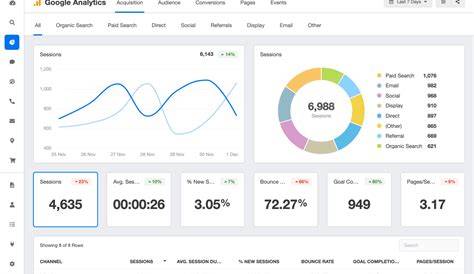
Tracking UTM parameters in Google Analytics is the best way to see which of your marketing emails and social media campaigns actually bring visitors to your website. UTM parameters are tags added to your URLs that tell Google Analytics where your traffic comes from and which campaigns are driving results. By setting them up correctly and knowing where to find the data in Analytics, you can make smarter marketing decisions backed by real numbers.
What exactly are UTM parameters and why should I care?
UTM parameters are short pieces of text you add to the end of a URL to label your traffic sources. They usually include utm_source (where the traffic comes from), utm_medium (the channel type, like email or social), and utm_campaign (the name of the specific campaign). When someone clicks a link with these tags, Google Analytics reads them and sorts your website traffic accordingly. Without UTM tags, it’s hard to tell if visitors came from your email newsletter, a Facebook post, or a paid ad. Knowing this helps you focus your time and budget on the marketing activities that actually bring results.
How do I create UTM parameters the right way?
Creating UTM parameters is simple if you follow a few key rules. Start with your base URL, then add tags like utm_source, utm_medium, and utm_campaign. For example, a newsletter link might end with ?utm_source=newsletter&utm_medium=email&utm_campaign=summer_sale. Keep your parameter names consistent and lowercase to avoid splitting data in Analytics. Use dashes or underscores instead of spaces, and choose clear but simple campaign names. Typos or mixing uppercase and lowercase letters can fragment your data and make reports harder to read. You can build these URLs manually or use Google’s free Campaign URL Builder tool to avoid mistakes.
Once I have UTM links, where do I find their data in Google Analytics?
To see how your UTM-tagged links perform, open Google Analytics and go to Acquisition > Campaigns > All Campaigns. Here, you’ll find your campaigns listed by the utm_campaign name, along with traffic, engagement, and conversion metrics. You can also explore Acquisition > All Traffic > Source/Medium to see the source and medium breakdown. These reports help you compare which campaigns or channels bring visitors and how those visitors behave on your site. In Google Analytics 4 (GA4), the campaign data is under Acquisition > Traffic acquisition. You can filter or group by campaign, source, or medium to analyze your UTM parameters.
Why am I not seeing my UTM data correctly or at all?
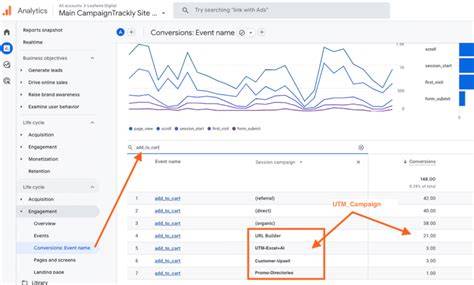
If your UTM data is missing or incomplete, check for common issues. Sometimes UTM parameters are left off URLs or contain typos. Google Ads auto-tagging can override manual UTM tags if not configured properly. Filters in your Analytics view might exclude some traffic, removing UTM info. Also, visitors using ad blockers or privacy settings can block tracking scripts, hiding UTM data. Make sure your URLs have correct, consistent parameters, verify your Analytics property and views are set up right, and test your links by clicking them and watching for traffic in Analytics.
Can I track UTM parameters in both Google Analytics 4 and Universal Analytics?
Yes, both Google Analytics 4 (GA4) and Universal Analytics (UA) track UTM parameters, but they organize and report on them differently. In UA, campaign data is easy to find under Acquisition > Campaigns. GA4 focuses more on events and user properties, so campaign data appears under Acquisition > Traffic acquisition, and you might need custom explorations for detailed analysis. Although GA4’s data model is different and some traditional reports aren’t available by default, both systems use the same UTM parameters for source, medium, and campaign. This means your tagging approach works for both platforms.
How do I use segments and custom reports to dig deeper into UTM data?
To understand your campaigns better, create custom segments or reports focused on specific UTM parameters in Google Analytics. In Universal Analytics, segments let you isolate users who came through a particular campaign—for example, those tagged with utm_campaign=summer_sale—and study their behavior, like pages viewed or conversion rates. Custom reports combine UTM dimensions with other metrics such as session duration or goal completions. In GA4, you can build Explorations that filter users by campaign parameters, giving you flexible ways to analyze user engagement and sales tied to your campaigns.
What are the best tools or methods to generate UTM links efficiently?
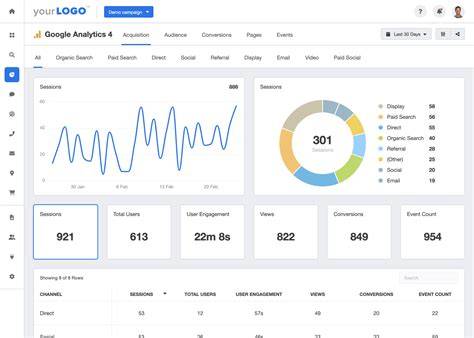
While you can add UTM parameters manually, using tools can save time and prevent errors. Google’s free Campaign URL Builder guides you through each parameter and creates a complete URL. Browser extensions like Effin Amazing’s UTM Builder speed up link creation right in your browser. Some businesses manage UTM links in spreadsheets to keep track of campaigns and parameters in one place, which helps maintain consistency. Always test your links before sharing them to confirm your parameters are correct and clicks show up in Analytics.
How can I keep my UTM parameters organized over time?
Consistency is crucial for clear UTM data. Set naming conventions for sources, mediums, and campaigns—use lowercase letters, avoid spaces, and pick a format your team understands. Document these rules in a shared guide or spreadsheet so everyone creating links follows the same system. Train your team or partners on why this consistency matters. Regularly check your UTM data in Analytics to catch typos or variations early. This organization prevents fragmented data and makes your reports easier to interpret as your campaigns grow.
Are there any limitations or pitfalls to relying on UTM tracking?
UTM tracking is useful but has limits. When visitors share your links without the UTM tags, that data gets lost. Cross-domain tracking can be tricky if visitors move between different websites without proper setup, causing source data to reset. Ad blockers or privacy settings may block Analytics scripts, hiding UTM info for some users. Also, relying only on UTM parameters can miss other attribution signals like direct visits or organic search. Keep these limits in mind to interpret your data realistically and use UTM tracking as one part of your overall marketing measurement.
What’s a simple checklist I can follow to ensure my UTM tracking works every time?
Before launching a campaign, check these points: 1. Confirm every URL has correct UTM parameters with no typos. 2. Use consistent, lowercase names for source, medium, and campaign. 3. Test the links yourself and watch for traffic in Google Analytics soon after clicks. 4. Make sure your Analytics property and views aren’t filtering out campaign traffic. 5. Avoid mixing manual UTM tags with Google Ads auto-tagging unless cross-tagging is set up correctly. 6. Document your naming rules for your team. 7. Monitor your UTM data regularly to spot any issues early. Following this checklist helps keep your tracking reliable and your reports accurate.
Conclusion
Start by clearly defining your UTM parameters and sticking to consistent naming—this small step makes your data easier to understand. Build and test your UTM links before sending them out, then check Google Analytics reports soon after to confirm your campaigns are tracked correctly. Don’t get overwhelmed by details; focus on clean tagging and regular reviews. When you know which campaigns really work, you can invest your time and money more confidently and grow your business.
Frequently Asked Questions
Can I add UTM parameters to any kind of link?
Yes, you can add UTM parameters to almost any URL that leads to your website, including emails, social media posts, and ads. Just make sure the destination page can handle URL parameters without breaking.
Will UTM parameters affect how my website looks to visitors?
No, UTM parameters only add tags to the URL and don’t change your website’s content or appearance. Visitors usually won’t notice them unless they look closely at the address bar.
How long do UTM parameters stay in Google Analytics?
UTM data is recorded when a user clicks a tagged link and starts a session. This data stays in Analytics as long as your account retains historical data, which can be months or years depending on your settings.
Can I use UTM parameters for internal links within my website?
It’s generally best not to use UTM parameters on internal links because they can overwrite the original traffic source and cause inaccurate attribution. UTM tags are mainly for tracking external campaigns.
What if I forget to use UTM parameters in a campaign?
If you don’t use UTM tags, Google Analytics tries to guess the source and medium, but it often groups traffic into generic categories like "direct" or "referral," making it harder to measure your campaign’s true impact.