Setting up and optimizing your ecommerce product feed for Google Ads is crucial to making your shopping ads work well. A properly created product feed lets Google understand your products clearly, which helps your ads get approved, show up for relevant searches, and attract buyers effectively. Without a solid feed, your ads risk disapproval, poor visibility, and wasted ad spend. This guide walks you through creating a compliant feed, fixing common errors, optimizing titles and images, automating updates, and keeping your feed healthy for better ad performance.
What exactly is a Google Ads product feed and why does it matter?
A Google Ads product feed is a file or spreadsheet that lists all your products along with key details like title, price, description, image URL, availability, and unique identifiers such as GTINs (Global Trade Item Numbers). Google uses this feed to build shopping ads that show your products directly in search results, YouTube, or across the Google Display Network. Unlike text ads where you write the ad copy, shopping ads automatically pull data from your feed to create ads.
The feed’s quality directly affects if your ads get approved, how often they appear, and how relevant they seem to shoppers. Incomplete or incorrect feeds can cause disapprovals or fewer impressions. A well-maintained feed helps Google connect your products to the right searches, improving visibility and increasing your chances of sales. Think of the product feed as the foundation of your shopping ads — if it’s weak or messy, your ads will struggle.
How do I create a product feed that Google will accept?
- ID: A unique identifier for each product.
- Title: The product name.
- Description: Details about the product.
- Link: The URL to the product page on your website.
- Image link: URL of the main product image.
- Availability: Whether the product is in stock.
- Price: Current price with currency.
- Brand and GTIN: Especially important for many product categories.
After preparing the feed, upload it to your Google Merchant Center account. You can upload files manually, schedule fetches from a hosted URL, or use the Content API for real-time updates. Google will scan your feed and flag any errors or warnings. Fix critical errors before running ads because disapproved products won’t show. Testing with a small product batch first can help you catch problems early and scale safely.
What are the most common feed errors and how can I fix them?
Several issues often cause feed disapproval or poor ad performance:
- Missing or incorrect GTINs: Branded products usually require GTINs. If you manufacture your own products or they’re custom, you can mark the identifier as "does not apply," but only if this fits Google’s rules.
- Disapproved images: Images that are blurry, include promotional overlays, or show multiple products instead of just the advertised item can be rejected. Use clear, high-resolution images focused solely on the product.
- Invalid URLs: Broken links or redirects can cause errors and prevent customers from reaching your product pages. Double-check every URL in your feed.
- Policy violations: Listing restricted products or showing inaccurate pricing will also cause disapprovals. Review Google’s shopping ads policies carefully.
The Merchant Center diagnostics tab will highlight these specific errors and often suggest fixes. Address issues promptly to keep your products approved and ads running smoothly.
How can I optimize product titles and descriptions to make my ads stand out?
Your product titles and descriptions play a big role in how relevant and appealing your ads look to shoppers. Make titles clear and descriptive by including key details like brand, color, size, and gender without stuffing keywords or sounding unnatural.
For example, instead of just "Shoes," say "Men’s Running Shoes Size 10 Black BrandName." This helps Google match your ad to the right searches and draws in interested buyers.
Descriptions should add useful details like materials, features, and benefits, but keep them concise and written in natural language. Avoid promotional phrases like "Best deal" or "Free shipping," since Google often filters or disapproves those.
Regularly check which products get clicks and tweak titles and descriptions to highlight what works best for your audience.
How do I select and optimize images so my products look their best in ads?
Google requires product images to be clear, well-lit, and displayed on a white or neutral background without distractions. The image must show the exact product you’re selling — avoid pictures with models unless the model is part of the product, like a mannequin.
Steer clear of images with watermarks, logos, promotional text, or multiple products in one photo. Ensure images have a high enough resolution to look good on all devices but aren’t so large they slow down feed processing.
If your products have variations like colors or sizes, provide images for each variant when possible. This helps Google show the most relevant image to shoppers.
Consistent image style across your product range builds brand recognition. Occasionally test different images to see if they improve click-through rates, but always follow Google’s image policies to avoid disapproval.
What are feed rules and supplemental feeds, and when should I use them?
Feed rules let you make automatic changes to your main product feed inside Google Merchant Center without editing your original file. For example, you can add a prefix to product titles or fix formatting issues automatically each time your feed uploads.
Supplemental feeds are extra feeds that add missing information or override specific attributes in your primary feed. For instance, if your main feed doesn’t include promotional details or custom labels, you can upload a supplemental feed to add those without rebuilding your entire feed.
Use feed rules for broad, consistent fixes that apply to many products at once. Use supplemental feeds when you want to add or update data for specific products without changing your main feed.
Both tools help keep your feed accurate and optimized with less manual work, especially if your product catalog changes often or comes from multiple sources.
How often should I update my product feed, and how can I automate that?
Regular updates keep your feed accurate and help prevent disapprovals. If your inventory, prices, or availability change frequently, aim to update your feed at least once a day. For more stable catalogs, a few updates per week might be enough.
Google Merchant Center lets you schedule automatic fetches if your feed file is hosted online, so Google pulls the latest version on a schedule without manual uploads. If you have developer support, using the Content API provides near real-time updates, which is great for large or fast-moving inventories.
Automation helps avoid outdated info that can cause disapprovals or disappoint customers. No matter the method, check your feed status regularly to catch any upload errors or issues quickly.
How can I monitor my feed’s health and performance in Google Merchant Center?
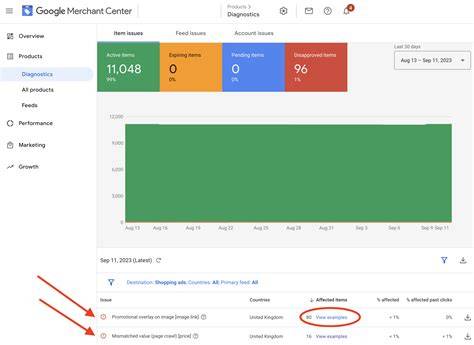
Google Merchant Center’s Diagnostics section shows errors, warnings, and disapprovals affecting your feed. Here, you can spot problems like missing required attributes, policy violations, or data quality issues.
Checking diagnostics regularly helps you fix problems before they hurt your ads. For example, if many products are disapproved for missing GTINs, you can focus on correcting those quickly. Merchant Center also provides performance reports with clicks, impressions, and conversions tied to your shopping campaigns.
Tracking these metrics alongside feed health shows which products perform well and which need work. You can also set up email alerts for critical errors to stay informed without logging in all the time.
Keeping your feed healthy and monitoring performance are key parts of running successful Google Shopping campaigns.
What advanced tips can help me get more from my product feed?
After you have a solid feed, custom labels let you group products for special bidding or promotions. For example, tag your best sellers or seasonal items to bid more aggressively on them in Google Ads.
Including promotion IDs or sale price attributes in your feed can trigger special offers in your ads, making them more appealing.
If you have product reviews or ratings, adding them to your feed can display stars or badges in your ads, increasing trust and click-through rates.
Adding detailed attributes like material, pattern, or age group can help Google show your ads to more specific shoppers.
Keep testing and refining your feed data to find what works best for your products and audience.
What’s the first practical step I should take right now to improve my product feed?
Start with a simple audit of your current feed inside Google Merchant Center. Look for disapproved products and common errors flagged in diagnostics. Make a list of top issues like missing GTINs, poor images, or broken links.
Fix the problems that will get the most products approved quickly, such as adding required attributes or replacing disapproved images. Small fixes here can improve your ad visibility fast.
Once immediate issues are resolved, work on optimizing titles and descriptions to boost relevance. You don’t need to fix everything at once—making steady, manageable improvements over time adds up.
The key is to act on clear priorities so your feed improves gradually and your shopping ads perform better.
Conclusion
The most important step is to have a product feed that’s complete, accurate, and follows Google’s requirements. Fix critical errors first to get your products approved, then focus on clear, relevant titles, descriptions, and images. Don’t try to perfect every detail right away. Instead, set a routine to monitor your feed’s health and update it regularly. Over time, these steady improvements will help your ads reach the right shoppers and increase your sales. Start by auditing your feed today and take the first steps toward better Google Shopping campaigns.
Frequently Asked Questions
Can I use any file format for my product feed?
Google accepts CSV, TSV, XML, and Google Sheets formats for product feeds. Choose the one that works best for you, but make sure your feed includes all required attributes in the correct format.
What happens if my product feed has errors?
Errors can cause your products to be disapproved or your ads to show less often. Fixing errors quickly keeps your ads eligible and relevant, which improves visibility and performance.
How do I know if my product titles are effective?
Check your ad click-through rates to see if products with detailed, keyword-rich titles perform better. Testing different titles and reviewing performance reports can help you improve them.
Is it necessary to update my product feed every day?
It depends on how often your inventory, prices, or availability change. For frequently changing catalogs, daily updates keep your ads accurate and approved. For stable inventories, updating less often may be enough.
What’s the advantage of using supplemental feeds?
Supplemental feeds let you add or update information in your main feed without re-uploading the entire product list. They’re useful for adding promotions, custom labels, or fixing specific data points quickly.