If your products aren’t showing up properly on Google Shopping, common feed errors are usually the cause. These errors can range from missing required details to policy violations, which can lead to your listings being disapproved or hidden. To fix this, start by identifying the specific errors in your feed, then correct the data following Google’s guidelines. You don’t need deep technical skills—just clear steps to clean up your feed so your products display correctly and reach more customers.
What are the most common errors in Google product feeds and why do they happen?
Most Google product feed errors come down to missing or incorrect information that Google needs to display your products properly. Common issues include leaving out required attributes like title, description, price, or product identifiers such as GTINs (Global Trade Item Numbers). For example, forgetting to include a price or using the wrong format means Google can’t show your product. Incorrect data formatting, like using letters where numbers belong or wrong currency codes, also causes problems. Some products get disapproved because they violate Google’s policies—such as promoting restricted items or providing inaccurate shipping information. These errors often happen because feeds are created manually or exported from platforms that don’t match Google’s exact requirements, or because updates aren’t carefully reviewed before uploading.
How can I check if my product feed has errors?
Start with the Diagnostics page in Google Merchant Center. This tool lists errors, warnings, and suggestions for your feed. Errors are critical and block products from showing, while warnings don’t block listings but might affect performance. The feed processing reports provide details on each upload, including which items failed and why. Look for patterns, like many products missing the same attribute, to identify widespread problems. Regularly checking these reports helps catch issues early. Merchant Center also explains what’s wrong and highlights affected products, so you don’t have to hunt for mistakes manually.
Why are missing or incorrect product identifiers such a big deal?
Product identifiers like GTINs, MPNs (Manufacturer Part Numbers), and brand names help Google recognize and classify your products. Without accurate identifiers, Google can’t verify your products, which often leads to disapproval or poor visibility. For instance, if you sell a popular smartphone but don’t include its GTIN, Google may treat your listing as incomplete or a duplicate. To fix this, add accurate GTINs for branded products. If your products don’t have GTINs, like custom-made items, use the 'identifier_exists' attribute set to false. Make sure your brand names and MPNs exactly match the manufacturer’s information. Correct identifiers not only prevent errors but can also improve how your products appear in search results.
What do I do when my products are disapproved for policy reasons?
Policy disapprovals occur when your products or feed break Google’s rules. Common causes include advertising restricted items, providing misleading information, or missing required shipping and return details. When you see a policy disapproval in Merchant Center, review the specific reason Google provides. Usually, fixing this means making your product titles, descriptions, and images clear and truthful or removing prohibited items from your feed. You might also need to update shipping and tax information so it matches what customers will actually pay. Since repeated policy violations can lead to account suspension, addressing these issues quickly is important.
How should I format price and availability correctly to avoid errors?
Prices must be in the correct currency and format—usually a number with up to two decimal places, like 19.99. The currency code (such as USD or GBP) should match the country where you’re selling. Availability must use accepted values: 'in stock,' 'out of stock,' or 'preorder.' If you offer a sale price, include both 'price' and 'sale_price' attributes. Make sure the sale price is lower than the regular price and valid within any specified sale date range. Common mistakes like missing currency codes, negative prices, or invalid availability values cause errors. Double-check these details carefully because accurate pricing and availability affect whether Google approves your products and how they appear to shoppers.
Why does image quality matter and how do I fix image-related feed errors?
Google wants shoppers to see clear, accurate pictures of the products they’re interested in, so image quality matters a lot. Common image errors include low resolution, promotional overlays like watermarks or logos, or pictures that don’t match the product. Google requires images to be at least 100 x 100 pixels for most products and 250 x 250 pixels for apparel, with no borders or added text. To fix image errors, replace low-quality photos with higher-resolution images that clearly show the product on a plain background. Avoid placeholder images or photos showing multiple products together. If your images don’t meet these standards, your products might be disapproved or perform poorly.
How can I use feed rules and supplemental feeds to fix errors without re-uploading everything?
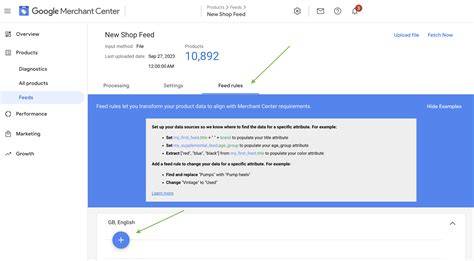
Google Merchant Center’s feed rules let you adjust your feed data without changing the original file. For example, if some products are missing brand information, you can create a rule to fill in a default brand name where it’s blank. Supplemental feeds let you upload additional data that merges with your main feed, filling gaps or correcting errors like missing product identifiers or prices. These tools save time because you don’t have to rebuild and re-upload your entire feed every time you find an issue. Just remember, feed rules and supplemental feeds work best for straightforward fixes—not for completely reformatting your feed.
What automated tools or extensions can help me maintain a clean product feed?
Google Merchant Center offers diagnostics that alert you to feed issues. Beyond that, third-party tools like DataFeedWatch, Feedonomics, and GoDataFeed can automate feed optimization, error detection, and correction. Many connect directly to your e-commerce platform and can fix common problems automatically or suggest fixes you can approve. Browser extensions or scripts can also check your feed files before upload, flagging formatting issues early. These tools don’t replace knowing Google’s feed requirements but reduce manual work and help catch errors before they cause disapprovals.
How often should I review and update my product feed to prevent errors?
You should review your product feed at least once a week, especially if you frequently update inventory, prices, or add new products. Regular checks catch errors early and keep your listings accurate and compliant. For larger catalogs or daily changes, consider daily reviews or automated alerts. Always update your feed when product details, prices, or availability change to avoid disapprovals. Neglecting feed maintenance can cause products to disappear from Google Shopping, reducing your visibility and sales. Staying on a consistent schedule for reviewing diagnostics and fixing issues is your best way to keep errors from piling up.
What’s the best way to get help if I’m stuck fixing a feed error?
If you get stuck, start with Google Merchant Center Help, where you’ll find detailed guides and troubleshooting tips. The Google Merchant Center community forums are also useful—many retailers and experts share solutions to common problems. For complex or persistent errors, you can contact Google support directly through Merchant Center. Hiring a professional experienced in feed management might save time if your feed is large or connected to multiple platforms. Since many feed errors come down to small details, having someone else review your feed or getting expert advice can help you fix issues faster.
Conclusion
Begin by using Merchant Center diagnostics to identify which errors are affecting your feed. Focus first on fixing missing or incorrect product identifiers and correcting price and availability details, as these are common blockers. Don’t worry about every warning—prioritize errors that prevent your products from showing. Use feed rules and supplemental feeds to apply fixes quickly without rebuilding your entire feed. Keep a regular schedule to review your feed and use automated tools to catch problems early. When you’re stuck, reach out to Google’s support and community forums. A clean, error-free feed gives your products a much better chance to appear to shoppers and boost sales, so tackling these fixes is well worth the effort.
Frequently Asked Questions
How do I fix missing required attributes in my Google product feed?
Check your Merchant Center diagnostics to see which attributes are missing. Then update your feed file or source system to include the required details like title, description, price, or product identifiers. If you use an e-commerce platform, make sure your product data fields are complete and properly mapped to Google’s requirements.
Can I fix product feed errors without uploading a new feed file?
Yes. Google Merchant Center’s feed rules let you modify or add data to your existing feed without re-uploading the entire file. Supplemental feeds can also add or correct information by merging with your main feed. These methods work well for quick fixes or small updates.
What causes policy disapprovals in product feeds?
Policy disapprovals happen when your products violate Google’s rules, like advertising prohibited items, providing inaccurate or misleading information, or missing required shipping and return details. Check the specific disapproval reason in Merchant Center to understand and fix the issue.
How important is image quality in Google product feeds?
Image quality is very important. Google requires clear, high-resolution images without promotional text or watermarks. Poor-quality images can cause disapprovals or reduce your product’s performance, since shoppers rely on good visuals to decide what to buy.
How often should I update my product feed to avoid errors?
You should review and update your feed at least once a week, or more often if your inventory or pricing changes frequently. Regular updates help prevent errors from building up and keep your listings accurate and active.